AI Translations
Translate content fields into multiple languages at once using AI. Works with any configured AI provider and streams translations in real time.
Requirements
- AI enabled (the
AI_ENABLEDenvironment variable defaults totrue) - At least one AI provider API key configured
- At least one model in the provider's allowed models list
- A collection with a translations field containing translatable string or text fields
- User must have create or update permissions on the translations junction collection
Setup
AI Translations shares provider configuration with AI Assistant. If you've already configured AI Assistant, translations are ready to use.
Translation-Specific Settings
In Settings > AI, you'll find three additional settings specific to translations:
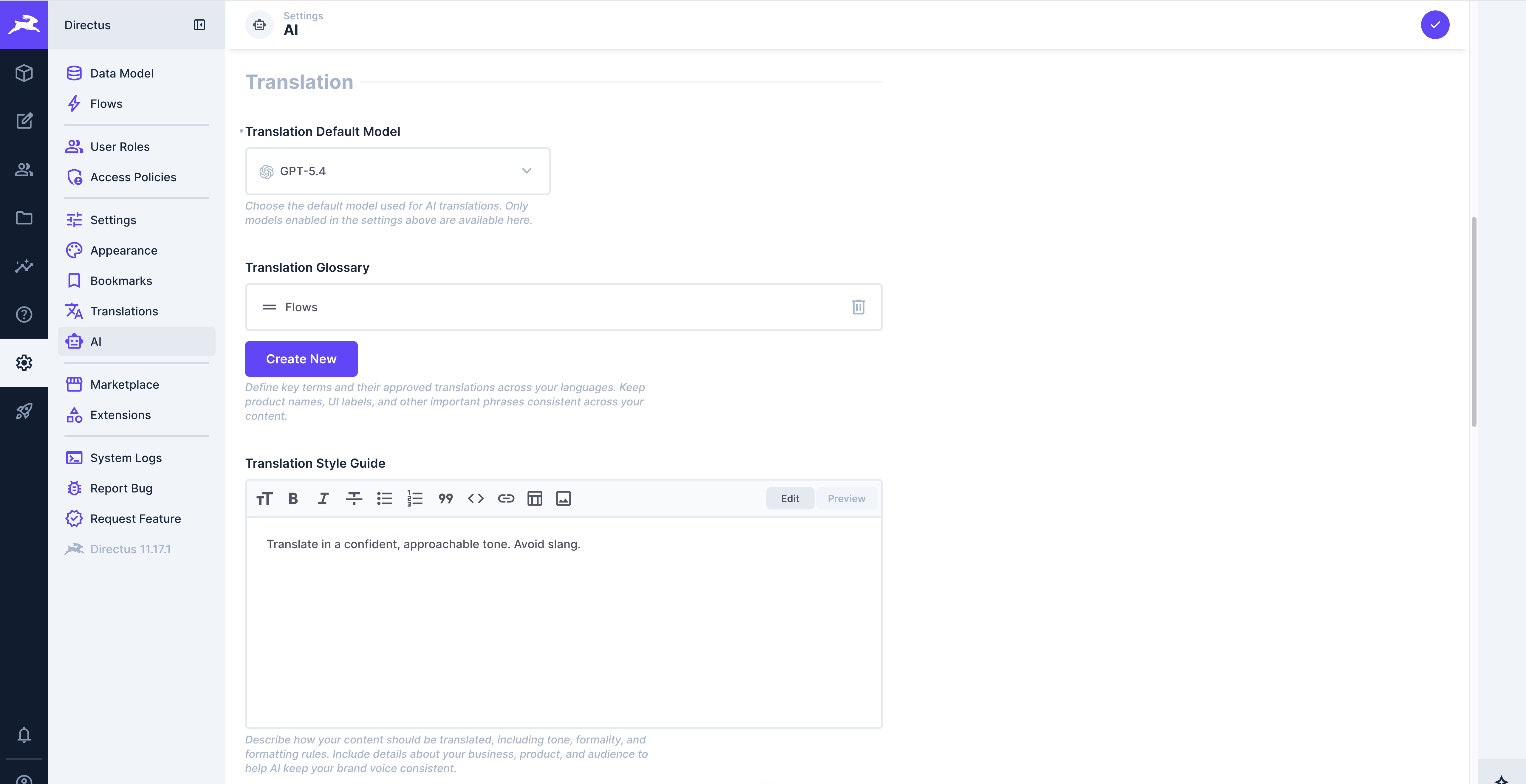
Default Translation Model --- Optionally pre-select a model for all users. Users can still override this per-translation.
Translation Glossary --- A list of terms with translation notes (up to 200 entries). Use this for brand names, product names, and technical terms that need specific handling.
| Term | Translation Note |
|---|---|
| Directus | Never translate, keep as-is |
| Data Studio | Keep as "Data Studio" in all languages |
| API | Keep as "API" |
Style Guide --- A rich text field for organizational writing standards, tone, and terminology preferences. Applied to all translations.
Usage
Open the Translation Modal
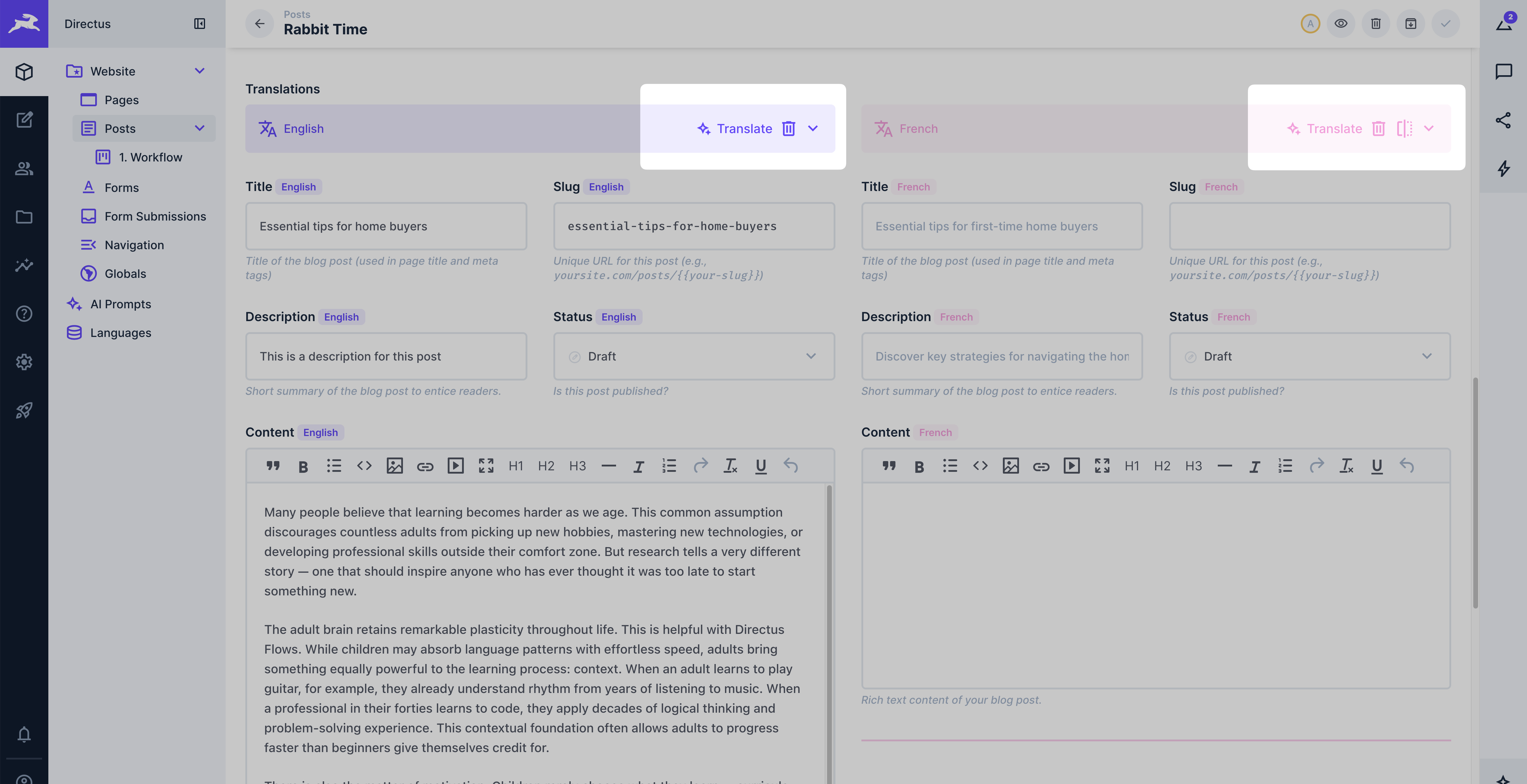
Navigate to an item with a translations field and click the Translate with AI button in the translations interface header.
Configure the Translation
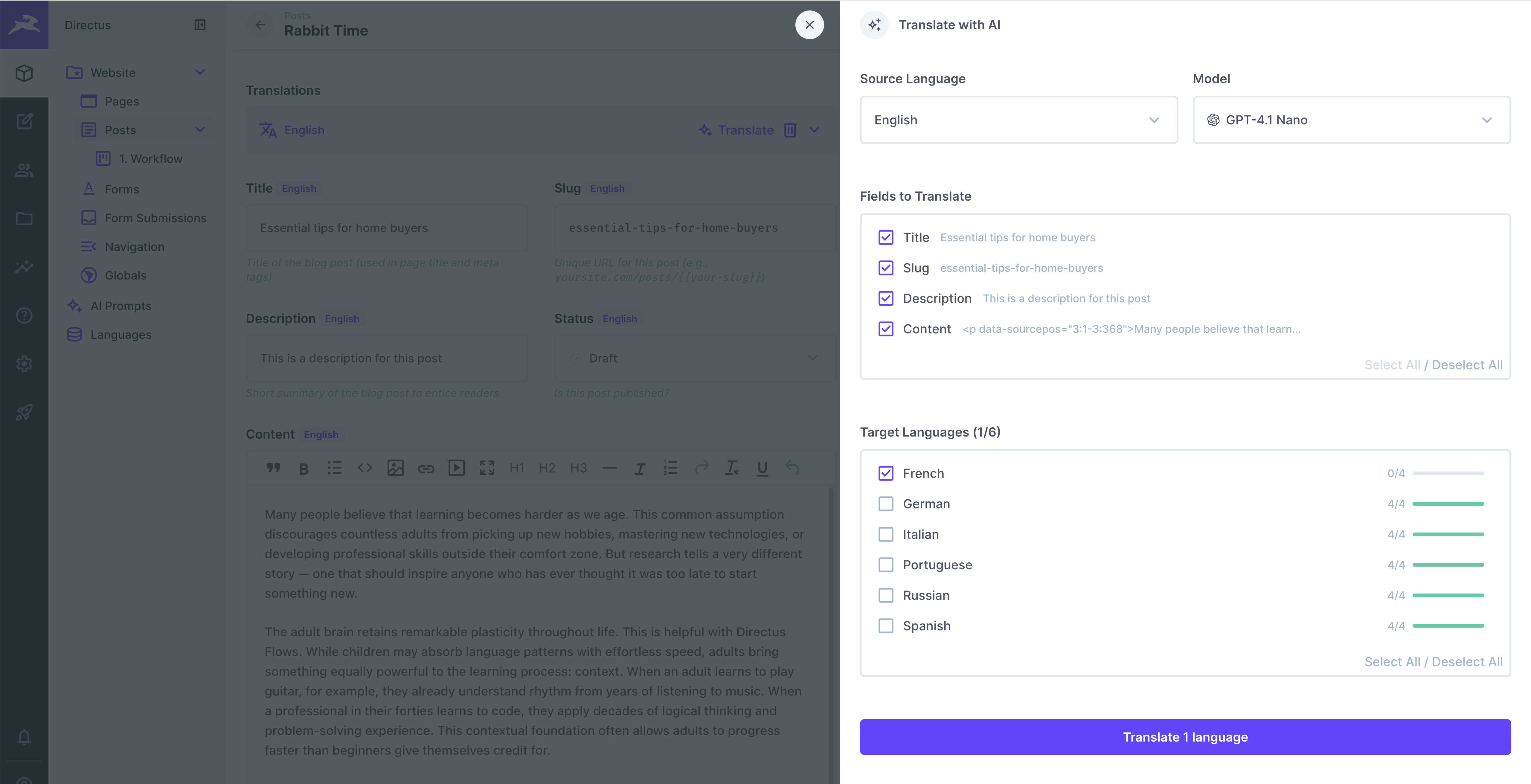
Source Language
Select which language contains the content you want to translate from.
Model
Pick an AI model to use. This selector only appears when multiple models are available. Defaults to the admin-configured default model.
Fields to Translate
Check the fields you want translated. Fields without source content are grayed out. A preview of the source content is shown next to each field.
Target Languages
Check which languages to translate into. Each language shows existing translation progress (e.g., 2/4 fields filled). Languages you don't have write permission for are disabled with a reason.
Translate
Click Translate N Languages to start.
During Translation
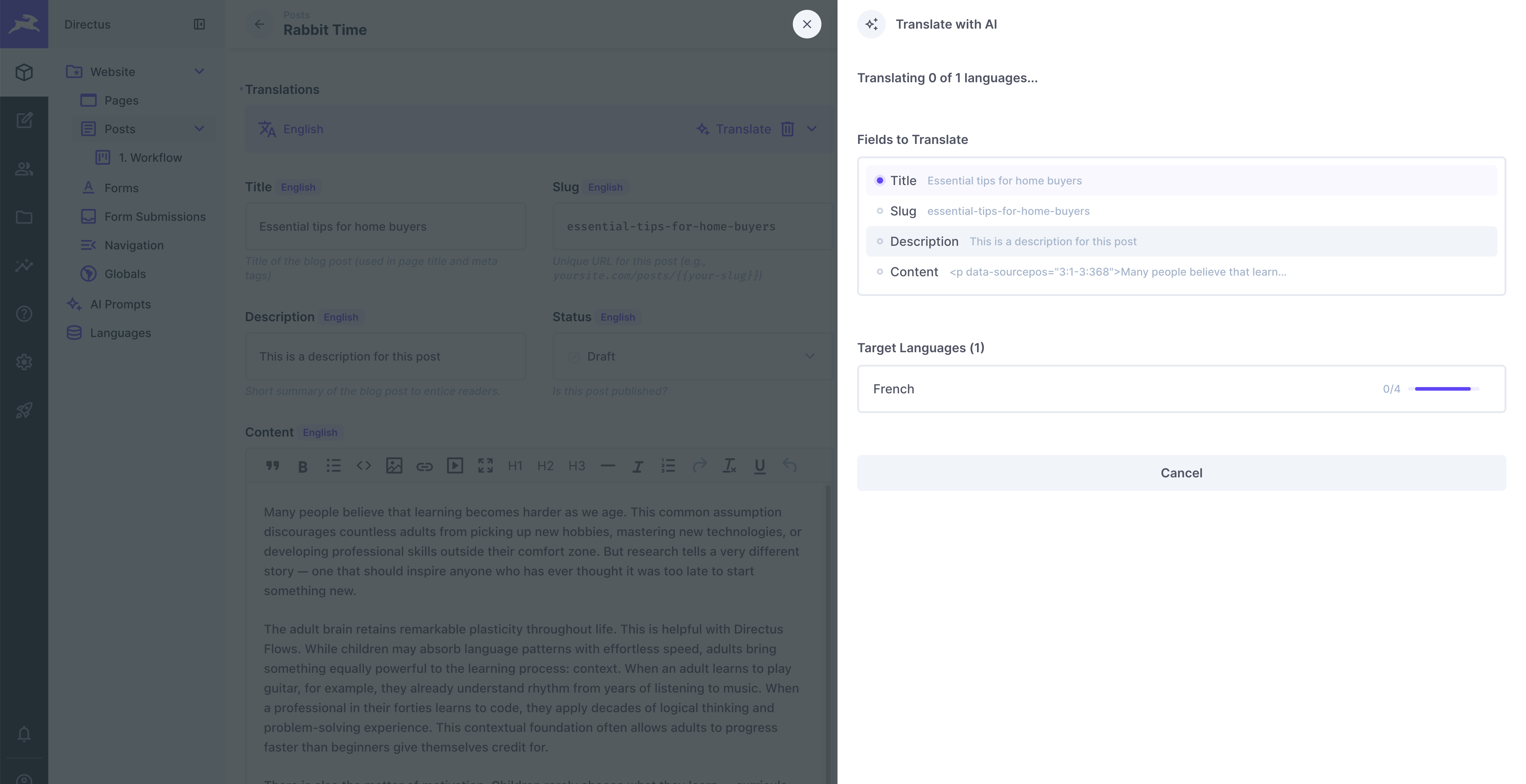
Translated field values stream into the form in real time as the AI generates them.
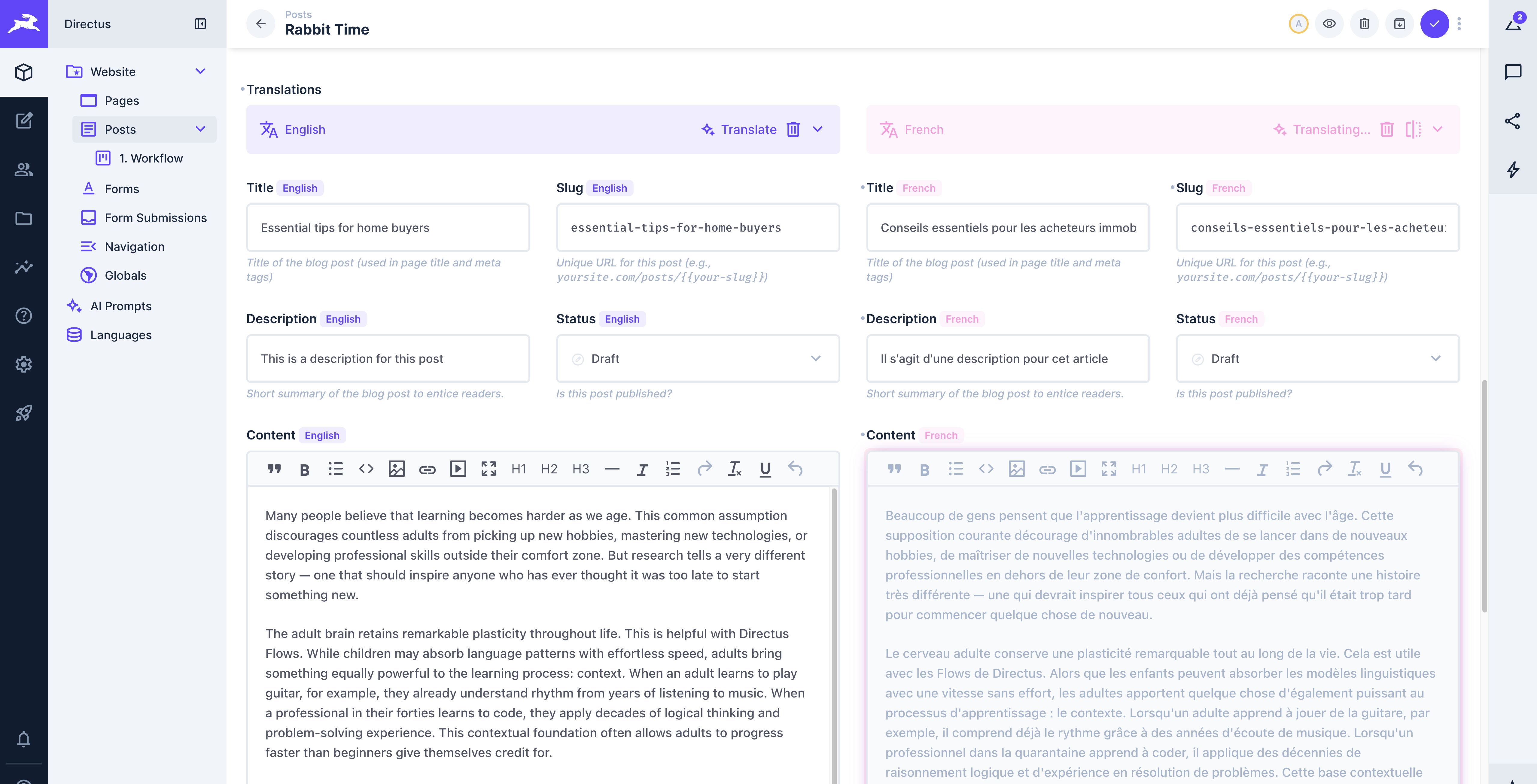
- Translations stream in real time --- field values appear in the editor as the AI generates them
- Per-language progress bars show completion status
- Per-field status indicators show which field is actively being translated, queued, or done
- All target languages are translated concurrently
Errors and Retries
- Transient errors (rate limits, server errors) automatically retry up to 3 times with exponential backoff
- Permanent errors display a per-language error notice with a Retry button
- You can cancel the entire job at any time
Field Handling
Different field types are handled automatically based on their interface and content type:
| Field Type | Behavior |
|---|---|
| Plain text | Translated naturally |
| Slug fields | Generates localized URL-safe slugs (lowercase, hyphens, ASCII) |
| Markdown | Preserves syntax and structure, translates prose only |
| HTML / Rich text | Preserves tags and attributes, translates text content only |
Non-translatable interfaces --- booleans, dates, files, colors, select dropdowns, and similar --- are automatically excluded from the field list.
Tips
- Use the glossary for brand names, product names, and technical terms that shouldn't be translated or need specific handling across languages.
- Use the style guide for consistent tone and voice across all translations.
- Cheaper, faster models (GPT-5 Nano, Claude Haiku 4.5, Gemini 2.5 Flash) work well for straightforward content translation.
- You can retry individual failed languages without re-translating the ones that succeeded.
- Translations are applied to the item but not saved automatically --- review the results and save when ready.
Get once-a-month release notes & real‑world code tips...no fluff. 🐰